Imagine you're filling out an online registration form. You enter your age as "25", but since everything you type comes from the keyboard, JavaScript receives it as text, not as a number.
Now suppose your program wants to calculate your age after five years.
"25" + 5
Should the result be 30 or 255?
JavaScript needs a way to convert one data type into another so that operations work correctly. This process is called Type Conversion.
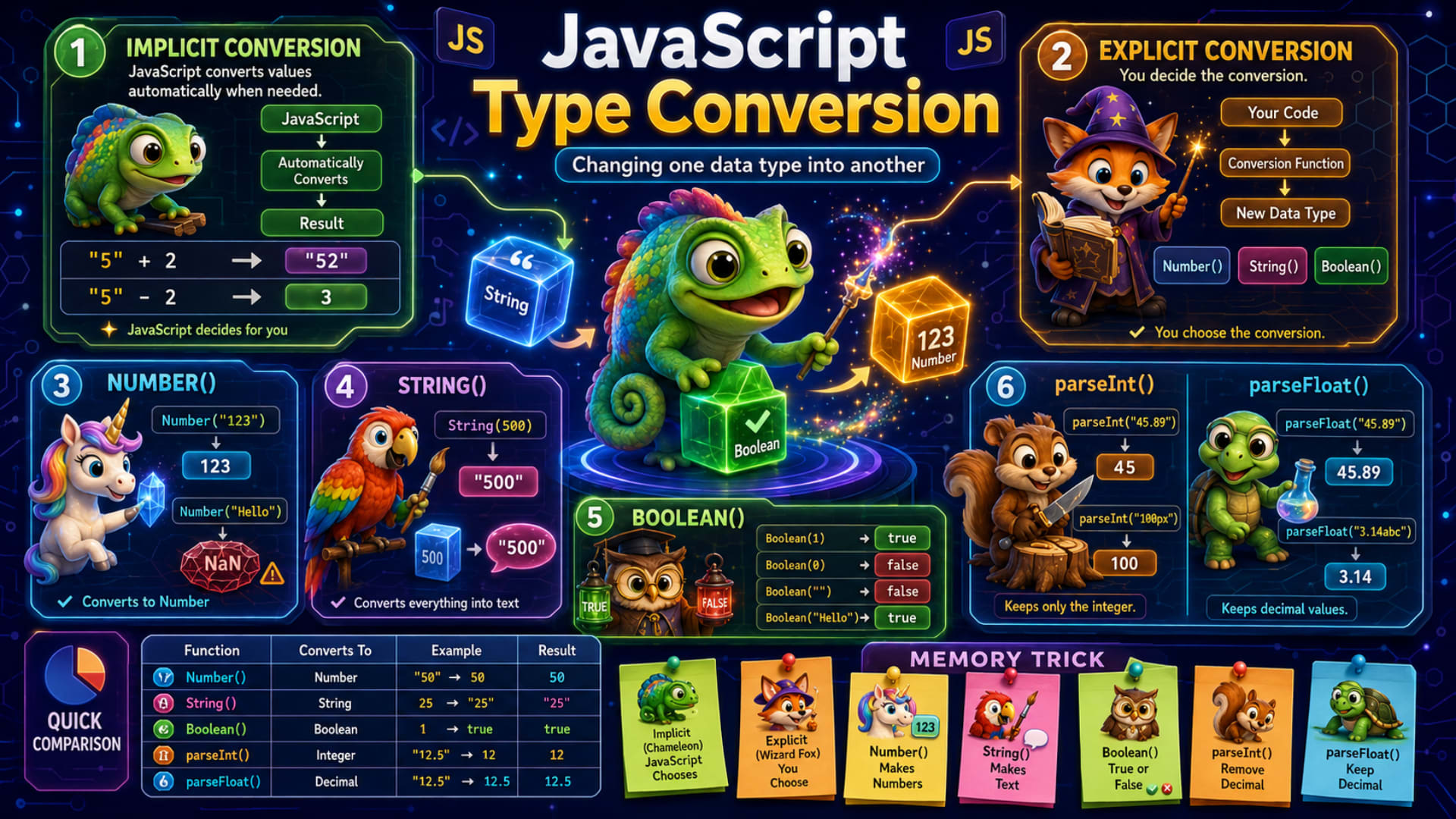
As the infographic explains, Type Conversion means changing one data type into another. Sometimes JavaScript performs this conversion automatically, while other times you have to tell it exactly what conversion you want.
Understanding type conversion is extremely important because it affects calculations, comparisons, user input, API responses, and many everyday JavaScript operations.
What is Type Conversion?
A Type Conversion is simply the process of converting one data type into another.
For example, you might convert:
A String into a Number
A Number into a String
A Value into a Boolean
Think of it like currency conversion. If you're traveling from India to the USA, you might convert Indian Rupees into US Dollars. The value is still representing money, but its format changes.
JavaScript performs a very similar process with data.
For example,
let age = "25";
Here, "25" is a String.
If you convert it using:
Number(age)
it becomes
25
which is now a Number.
The value represents the same age, but the data type has changed.
Types of Type Conversion
The infographic divides Type Conversion into two categories.
Implicit Conversion
Explicit Conversion
Let's understand both.
Implicit Type Conversion
The infographic first introduces Implicit Conversion.
This happens automatically.
You don't ask JavaScript to convert anything. JavaScript decides that a conversion is necessary and performs it for you.
The infographic demonstrates this using two examples.
"5" + 2
Output
"52"
Many beginners expect the answer to be
7
but that's not what happens.
Why?
Because one value is a String.
"5"
Whenever the + operator is used with a String, JavaScript converts the Number into a String and joins them together.
Internally, JavaScript thinks like this:
"5" + "2"
Result:
"52"
This process is called String Concatenation.
Now look at the second example from the infographic.
"5" - 2
Output
3
This time the answer is different.
Why?
Because the subtraction operator only works with numbers.
JavaScript automatically converts "5" into the Number 5.
Internally it becomes:
5 - 2
Result:
3
Notice something interesting.
With the + operator, JavaScript preferred converting the Number into a String.
With the - operator, JavaScript preferred converting the String into a Number.
That's why implicit conversion can sometimes surprise beginners.
More Examples of Implicit Conversion
"10" * 2
Output
20
Because multiplication requires numbers.
"20" / 4
Output
5
Again, JavaScript automatically converts the String into a Number.
true + 1
Output
2
Why?
Because JavaScript converts
true → 1
false → 0
Internally,
1 + 1
Result:
2
Explicit Type Conversion
Unlike implicit conversion, Explicit Conversion happens only when you decide to convert a value.
The infographic illustrates this as a simple flow:
Your Code
      ↓
Conversion Function
      ↓
New Data Type
Instead of JavaScript making the decision, you use functions like:
Number()String()Boolean()
This makes your code much more predictable and easier to understand.
Number()
The infographic introduces Number(), which converts a value into a Number.
Example:
Number("123")
Output
123
Now the value is a Number instead of a String.
This is extremely useful when receiving user input because prompt() always returns text.
For example:
let age = Number(prompt("Enter your age"));
Now JavaScript stores the value as a Number, allowing you to perform calculations.
Invalid Number Conversion
The infographic also demonstrates this example.
Number("Hello")
Output
NaN
NaN stands for
Not a Number
It means JavaScript tried to convert the value into a Number but couldn't.
Another example:
Number("JavaScript")
Result
NaN
Always remember that NaN itself is a special Number value representing an invalid numerical result.
String()
Sometimes you want to convert numbers into text.
That's where String() comes in.
The infographic uses this example.
String(500)
Output
"500"
The value stays the same,
but the data type changes from Number to String.
This is commonly used when displaying numbers inside messages.
Example:
let marks = 95;

alert("Marks: " + String(marks));
The number is converted into text before being combined with the message.
Boolean()
The infographic also introduces Boolean().
It converts values into either true or false.
Some examples shown in the infographic are:
Boolean(1)
Output
true
Boolean(0)
Output
false
Boolean("")
Output
false
Boolean("Hello")
Output
true
Why?
Because JavaScript treats non-empty strings as Truthy values.
A simple rule to remember is:
Empty values usually become
false.Values containing meaningful data usually become
true.
This function is very useful when checking whether a user entered information.
parseInt()
The infographic now introduces parseInt().
Its purpose is to extract the integer portion of a number.
Example:
parseInt("45.89")
Output
45
Notice that the decimal part disappears.
Another example shown in the infographic is:
parseInt("100px")
Output
100
JavaScript starts reading from the beginning of the String.
It keeps reading until it encounters a character that isn't part of the number.
As soon as it reaches
p
it stops.
This function is extremely useful when extracting numbers from values like:
100px
250kg
75%
parseFloat()
The infographic also introduces parseFloat().
Unlike parseInt(), this function keeps the decimal value.
Example:
parseFloat("45.89")
Output
45.89
Another example from the infographic:
parseFloat("3.14abc")
Output
3.14
JavaScript reads the decimal number and stops when it reaches a non-numeric character.
Number() vs parseInt() vs parseFloat()
Many beginners get confused between these three functions.
Let's compare them.
Number("45.89")
Output
45.89
parseInt("45.89")
Output
45
parseFloat("45.89")
Output
45.89
Now consider this example.
Number("100px")
Output
NaN
because the entire String isn't a valid number.
However,
parseInt("100px")
returns
100
and
parseFloat("100.5px")
returns
100.5
This is one of the biggest practical differences between these functions.
When Should You Use Each One?
Here's a simple guideline.
Use Number() when you expect the entire value to be a valid number.
Use String() whenever you need to convert numbers or other values into text.
Use Boolean() when checking whether values should behave as true or false.
Use parseInt() when you only need the integer portion of a value.
Use parseFloat() when you need decimal numbers.
Common Beginner Mistakes
One of the most common mistakes is assuming that user input from prompt() is already a Number.
For example:
let age = prompt("Enter your age");

console.log(age + 5);
If the user enters:
20
the output becomes
205
because prompt() returns a String.
The correct approach is:
let age = Number(prompt("Enter your age"));

console.log(age + 5);
Now the output becomes:
25
Another common mistake is expecting parseInt() to round decimal numbers. It doesn't round—it simply removes everything after the decimal point.
parseInt("9.99")
returns
9
not
10
Quick Revision
Function | Purpose | Example | Result |
|---|---|---|---|
Implicit Conversion | JavaScript converts automatically when needed. |
|
|
Explicit Conversion | You manually choose the conversion. |
|
|
| Converts values into Numbers. |
|
|
| Converts values into Strings. |
|
|
| Converts values into |
|
|
| Extracts only the integer part. |
|
|
| Extracts decimal numbers. |
|
|
Best Practice | Use |