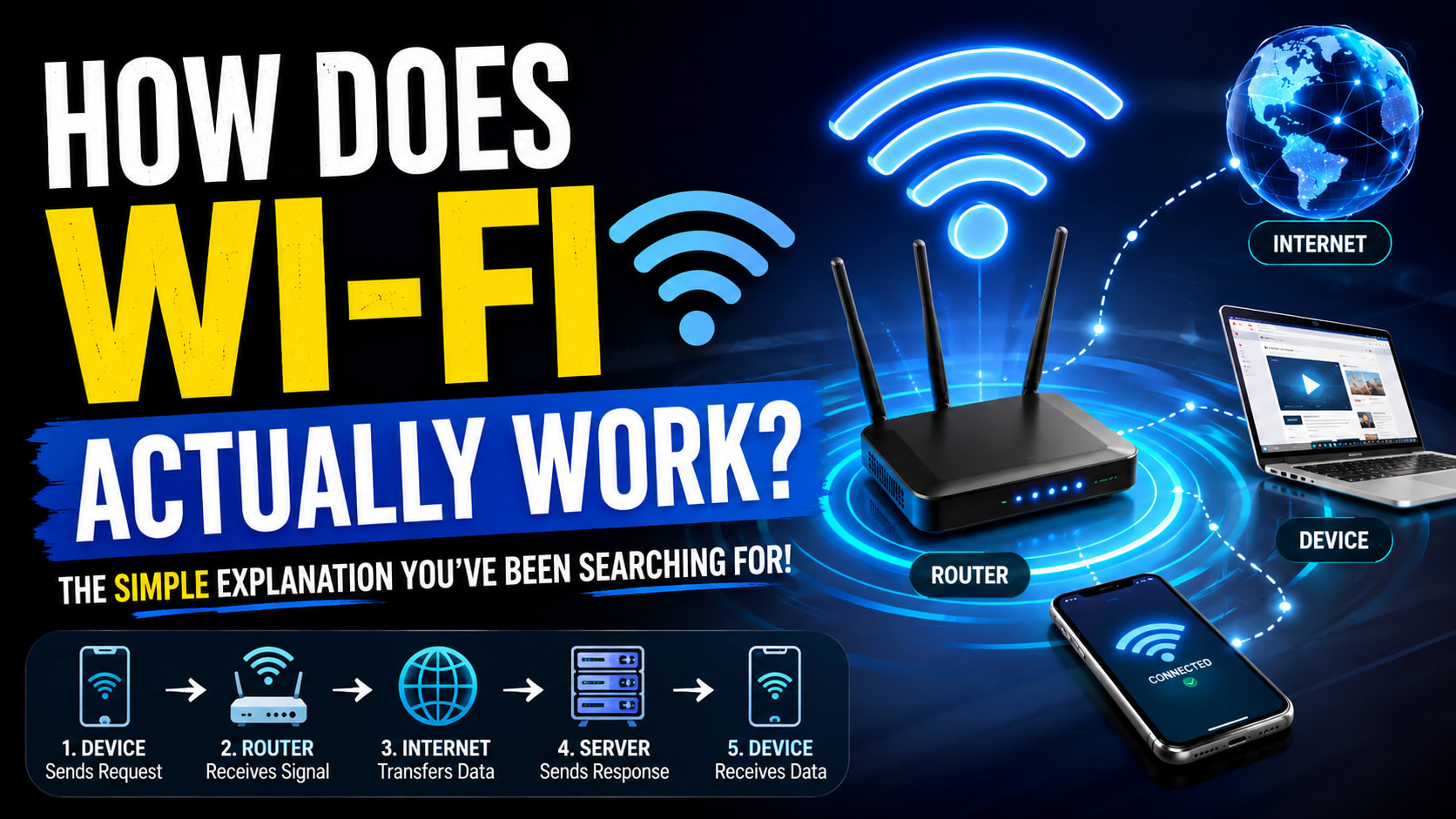
How Does Wi-Fi Work? A Simple Guide for Beginners
You probably connect your phone, laptop, TV, and other devices to Wi-Fi every single day. You open the Wi-Fi settings, tap your network, enter a password, and suddenly you're watching YouTube, browsing websites, downloading files, or sending messages. But have you ever stopped and wondered how does Wi-Fi work? There are no cables connecting your phone to the router, so how does your phone actually send information through the air?
Let's break it down like we're sitting together and trying to figure it out. We'll follow the journey of your data from your phone to the router, from the router to the internet, and finally to the server you're trying to reach.
First, What Exactly Is Wi-Fi?
Before we go deeper, let's clear up one very common misunderstanding: Wi-Fi is not the internet.
Wi-Fi is a wireless networking technology that allows devices to communicate with a network using radio signals. The internet is the massive collection of interconnected networks that your local network can connect to. The IEEE 802.11 family of standards defines the technology behind Wi-Fi networks. IEEE 802.11 Working Group
Think about it this way. Wi-Fi is the wireless connection between your device and your local network, while the internet is the much larger network beyond your router.
That's why you can be connected to Wi-Fi but still have no internet. Your phone might successfully connect to your home router, but if your internet connection is down, the router can't reach websites or online services.
So, How Does Wi-Fi Work?
The simplest explanation is actually pretty cool.
Your phone has a small Wi-Fi radio inside it, and your router has Wi-Fi radios too. When your phone connects to the router, the two devices communicate using radio-frequency signals instead of a physical cable.
Your phone takes digital information and prepares it for wireless transmission. The router receives that wireless communication, processes the network traffic, and can then forward the data toward the internet.
So the basic journey looks like this:
Phone → Wi-Fi → Router → Internet → Server
And when the server sends something back, the journey happens in reverse:
Server → Internet → Router → Wi-Fi → Phone
That's the basic idea. Of course, there are quite a few interesting things happening inside those arrows.
What Happens When You Connect Your Phone to Wi-Fi?
Let's say you come home and your phone sees a network called PNT_HOME_WIFI.
You tap it and enter your password.
Your phone doesn't immediately start downloading Instagram posts or YouTube videos. First, it needs to discover the network, communicate with the access point, and complete the necessary authentication and security process.
Once your phone successfully joins the network, it also needs network configuration. Usually, your router provides information such as an IP address through something called DHCP.
Only after all of this is ready can your phone properly communicate over the network.
It looks like you simply tapped a Wi-Fi name, but quite a bit happens behind that little button.
What Is an SSID?
When you open the Wi-Fi settings on your phone, you see names such as Home WiFi, TP-Link_1234, or MyOffice.
That name is called the SSID, which stands for Service Set Identifier.
You can think of the SSID as the name your Wi-Fi network uses so that nearby devices can identify it. That's why you can change a router's default name from something like TP-Link_1234 to something much more memorable.
Changing the SSID doesn't change the underlying internet connection. You're simply changing the name used to identify the wireless network.
Your Wi-Fi Password Does More Than You Think
You might think your Wi-Fi password simply tells the router, "Yep, I'm allowed to connect."
It's actually part of a larger authentication and security process.
Modern Wi-Fi networks can use security standards such as WPA2 and WPA3 to help protect wireless communication. Older technologies such as WEP are considered outdated and should not be used for modern networks. CISA Wi-Fi Security Guidance
Once your device successfully authenticates, the network can establish the necessary security protections for wireless traffic.
So your Wi-Fi password isn't just a simple lock on the network. It's part of the process that helps your device establish a trusted and protected connection.
How Can Wi-Fi Send Data Without a Cable?
This is probably the part that feels like magic.
Your phone stores information digitally. Let's say you send your friend the message "Hey, are you coming?"
Inside your phone, that message becomes digital data. Your phone's networking hardware then prepares that data for transmission through the Wi-Fi connection.
Instead of sending those bits through a copper cable, Wi-Fi transmits information using radio-frequency signals.
The router receives those wireless signals and processes the information.
So your message isn't literally floating through the air as the words "Hey, are you coming?". The information is encoded into signals that the Wi-Fi system can transmit, receive, and interpret.
Wi-Fi Uses Radio Waves
Wi-Fi works because radio waves can carry information through the air.
Depending on the Wi-Fi technology and the device, Wi-Fi can operate across frequency bands such as 2.4 GHz, 5 GHz, and 6 GHz.
These bands behave differently. For example, 2.4 GHz signals generally travel farther and tend to penetrate obstacles better than higher-frequency signals, while 5 GHz and 6 GHz can provide access to additional spectrum and wider channels in supported environments.
That's one reason modern routers often support multiple bands.
Your phone might use one band when you're close to the router and another when network conditions or device configuration make it more appropriate.
Why Is 5 GHz Sometimes Faster Than 2.4 GHz?
Let's say your router gives you two options:
PNT_HOME_2.4G
and
PNT_HOME_5G
You might notice that the 5 GHz network feels faster when you're sitting close to the router.
One reason is that 5 GHz networks can provide access to wider channels and often encounter different levels of congestion compared with 2.4 GHz. However, higher frequencies generally don't travel through walls as effectively as lower frequencies.
So you might get excellent 5 GHz performance while sitting next to the router, but several rooms away, 2.4 GHz might maintain a stronger connection.
This doesn't mean 5 GHz is always better. It depends on your distance, walls, interference, router, and device.
What Is a Wi-Fi Channel?
Here's another concept that explains why your Wi-Fi can become slow in a crowded apartment.
Imagine you're in a room where 20 people are trying to talk at the same time. Even if everyone has a perfectly good voice, the room becomes difficult to communicate in because everyone is competing for the same space.
Wireless networks can face a similar problem.
Wi-Fi bands are divided into channels, and nearby networks can end up competing for the available wireless spectrum. If you live in an apartment building with dozens of routers around you, your Wi-Fi environment can become pretty crowded.
So sometimes your internet isn't actually slow.
Your Wi-Fi may simply be dealing with too much wireless interference or congestion.
What Happens When 10 Devices Use the Same Wi-Fi?
Now imagine your home has two phones, two laptops, a smart TV, a tablet, a gaming console, and several smart-home devices.
They're all using the same Wi-Fi network.
Does that mean the router creates a completely separate Wi-Fi network for every device?
No.
Wi-Fi has mechanisms for coordinating communication over the shared wireless medium. Modern Wi-Fi generations have introduced increasingly sophisticated techniques for making better use of available airtime, especially when many devices are connected.
Wi-Fi 6, for example, is based on IEEE 802.11ax and introduced technologies designed to improve efficiency in busy wireless environments.
So modern Wi-Fi isn't simply one device talking while every other device waits. The technology has become much smarter about managing shared wireless communication.
What Is an Access Point?
You might hear the term Access Point, or simply AP, when learning networking.
An access point is the part of a network that provides wireless connectivity to devices such as phones and laptops.
Here's where things get confusing.
The box sitting in your house is usually called a Wi-Fi router, but technically it can contain several different networking functions.
It might contain a:
Wireless Access Point + Router + Ethernet Switch + DHCP Server + Firewall + Other Features
That's why saying "the router gives me Wi-Fi" isn't completely wrong in everyday conversation, but technically the wireless access point and routing functions are doing different jobs.
What Does the Router Actually Do?
Your router isn't simply a box that creates Wi-Fi.
Its main networking job is to help move traffic between different networks.
For example, your phone might have a private IP address such as:
192.168.1.20
Your router then has a connection toward your internet service provider.
When your phone wants to access something on the internet, the router helps forward that traffic toward the appropriate destination.
Depending on the router, it can also handle things such as NAT, DHCP, firewall functionality, DNS forwarding, and other network services.
So that little box sitting next to your TV is actually doing a lot of work.
How Does Your Phone Get an IP Address?
Once your phone connects to Wi-Fi, it needs an IP address and other network information.
This is where DHCP, or Dynamic Host Configuration Protocol, comes in.
Your router can run a DHCP server that automatically gives your phone information such as an IP address, subnet configuration, default gateway, and DNS server.
That's why you don't have to manually configure an IP address every time you connect a new phone or laptop to your home network.
Your device basically asks:
"Hey, I'm new here. What network settings should I use?"
And the DHCP server provides the required configuration.
What Happens When You Open Google?
Now let's put everything together.
Imagine you're sitting on your laptop and type:
into your browser.
Your computer first needs to figure out where that domain should go. That's where DNS, or Domain Name System, comes into the picture.
DNS helps translate human-friendly domain names into IP addresses that computers can use for network communication.
Once your computer has the required destination information, your request can start its journey.
It goes something like this:
Laptop → Wi-Fi → Router → ISP → Internet → Google
Google's infrastructure then sends a response back:
Google → Internet → ISP → Router → Wi-Fi → Laptop
Your browser receives the necessary data and turns it into the webpage you see.
And the crazy part is that this whole process can happen incredibly quickly.
Is Wi-Fi the Same as Internet Speed?
No, and this is one of the biggest misconceptions about Wi-Fi.
Imagine your ISP gives your house a 500 Mbps internet connection. That doesn't automatically mean your laptop will always receive 500 Mbps over Wi-Fi.
Your real-world performance depends on many things, including your Wi-Fi signal strength, distance from the router, walls, interference, router capabilities, device capabilities, network congestion, ISP performance, and even the server you're connecting to.
So when someone says:
"My Wi-Fi is slow."
the actual problem could be the wireless connection, the internet connection, the device, or even the website's server.
That's why troubleshooting slow internet isn't always as simple as blaming the router.
Why Does Wi-Fi Become Slower When You Move Away?
Radio signals become weaker as the distance between the transmitter and receiver increases.
Now add walls, floors, furniture, metal objects, and other obstacles, and the signal can become weaker still.
Think about talking to a friend.
If they're standing right next to you, communication is easy. If they move to another room and close several doors, communication becomes harder.
Wi-Fi faces a similar problem.
As wireless conditions get worse, the system can adjust how it communicates so that the connection remains usable. The result is that your connection might become slower as you move farther away from the access point.
So that Wi-Fi icon on your phone isn't just decoration. It gives you a rough indication of your wireless connection conditions.
Why Can Wi-Fi Pass Through Walls?
You might be wondering how your phone can communicate with a router when there's a wall between them.
The answer is that radio waves can travel through some materials, although those materials can weaken, reflect, scatter, or absorb the signal.
A normal interior wall might reduce the signal without completely blocking it. However, thick concrete, metal structures, floors, and other materials can have a much bigger effect.
That's why your Wi-Fi can be perfect in the room where your router sits but noticeably weaker two rooms away.
Why Does Restarting the Router Sometimes Fix Wi-Fi?
We've all done this.
The internet becomes weird.
You stare at the router.
You unplug it.
You wait.
You plug it back in.
And somehow everything works again.
It's not magic.
Restarting the router can clear temporary software states, reset network interfaces, and cause connections to be established again. If the router was experiencing a temporary problem, a restart can sometimes clear it.
Of course, restarting won't fix everything. If your ISP is down or your Wi-Fi environment is heavily congested, restarting the router won't magically give you faster internet.
Still, it's a surprisingly useful first troubleshooting step.
Wi-Fi vs Mobile Data: What's the Difference?
Your phone can access the internet through both Wi-Fi and mobile data, but the underlying networks are completely different.
When you're at home, your phone might connect to your Wi-Fi router. That router connects to your broadband or fiber connection, which then connects to your ISP and the wider internet.
When you leave home, your phone can switch to a cellular network. Instead of talking to your home router, it communicates with a nearby cellular base station.
So the journey becomes:
Wi-Fi: Phone → Router → ISP → Internet
Mobile Data: Phone → Cell Tower → Mobile Network → Internet
Both can get you online, but they use completely different wireless technologies and network infrastructure.
Why Does Wi-Fi Sometimes Disconnect?
There isn't one single reason why Wi-Fi disconnects.
You could be too far from the router, there could be significant interference, the router could be overloaded, your device's Wi-Fi hardware or software could have a problem, or the router itself could need an update or restart.
There could also be a problem with your internet connection rather than the Wi-Fi connection.
This is why it's useful to separate the two questions:
"Am I connected to Wi-Fi?"
and
"Does my Wi-Fi have internet access?"
Your phone can answer "yes" to the first question while the answer to the second is "no."
Is Public Wi-Fi Safe?
Public Wi-Fi isn't automatically dangerous, but you should be more careful when you're using a network you don't control.
Think about an airport, hotel, coffee shop, or railway station. Lots of people may be connected to the same wireless infrastructure, and you have no idea how that network is configured.
For sensitive activities, make sure you're using secure websites and services. CISA also recommends using modern Wi-Fi security such as WPA2 or WPA3 for networks you control. CISA security guidance
And remember, HTTPS matters too. When you're using a secure HTTPS website, your browser and the website can establish encrypted communication even though your local connection happens over Wi-Fi.
So, What Actually Happens When You Use Wi-Fi?
Let's put the entire story together.
You open your laptop and connect it to your home Wi-Fi.
First, your laptop discovers the wireless network and communicates with the access point. It goes through the required authentication and security process and then receives network configuration such as an IP address.
Now you open a website.
Your laptop needs to find the destination server, so DNS helps resolve the domain name. Your laptop then sends network traffic through its Wi-Fi connection to the router.
The router receives the wireless traffic and forwards it toward your ISP. From there, the traffic travels across other networks until it reaches the destination server.
The server sends a response back.
That response travels through the internet, reaches your router, gets transmitted over Wi-Fi, and is received by your laptop.
Your browser then processes that data and displays the webpage.
You just see:
"Website loaded."
But underneath that simple moment, you've used wireless communication, authentication, IP addressing, DNS, routing, transport protocols, and application protocols.
That's what makes networking so interesting.
A Simple Mental Model for Wi-Fi
If all of this feels like a lot, don't worry.
You don't need to memorize every technical detail right away.
Just remember this simple model:
Your device doesn't directly connect to the entire internet through Wi-Fi.
Instead, your device connects wirelessly to an access point.
The access point connects your device to the local network.
The router helps move traffic between your local network and other networks.
Your ISP provides the connection toward the wider internet.
And somewhere on the other side is the server you're trying to reach.
So:
Device → Wi-Fi → Router → ISP → Internet → Server
Then the response comes all the way back.
Once you understand this basic journey, a lot of networking concepts suddenly become easier to understand.
What Should You Learn Next?
Now that you understand how Wi-Fi works, there's a perfect next topic to learn: TCP vs UDP.
You've probably heard these names before, but understanding what they actually do makes networking much easier.
Final Takeaway
So the next time you connect your phone to Wi-Fi, remember what's actually happening.
Your phone isn't magically connecting directly to Google, YouTube, or Instagram.
It first communicates wirelessly with your Wi-Fi access point. The router then helps move that traffic from your local network toward your ISP and eventually across the internet to the server you want to reach.
The server sends the response back through the same general chain, and your device receives it over Wi-Fi.
All of this happens using a combination of radio communication, authentication, encryption, IP addresses, DNS, routing, and networking protocols.
And the coolest part?
You experience this entire complicated process by simply tapping a little Wi-Fi icon on your phone.